
OneDrive vs SharePoint vs Teams: Complete Microsoft 365 File Management Guide
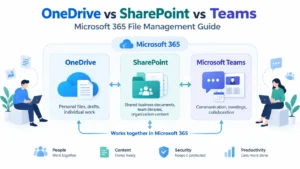
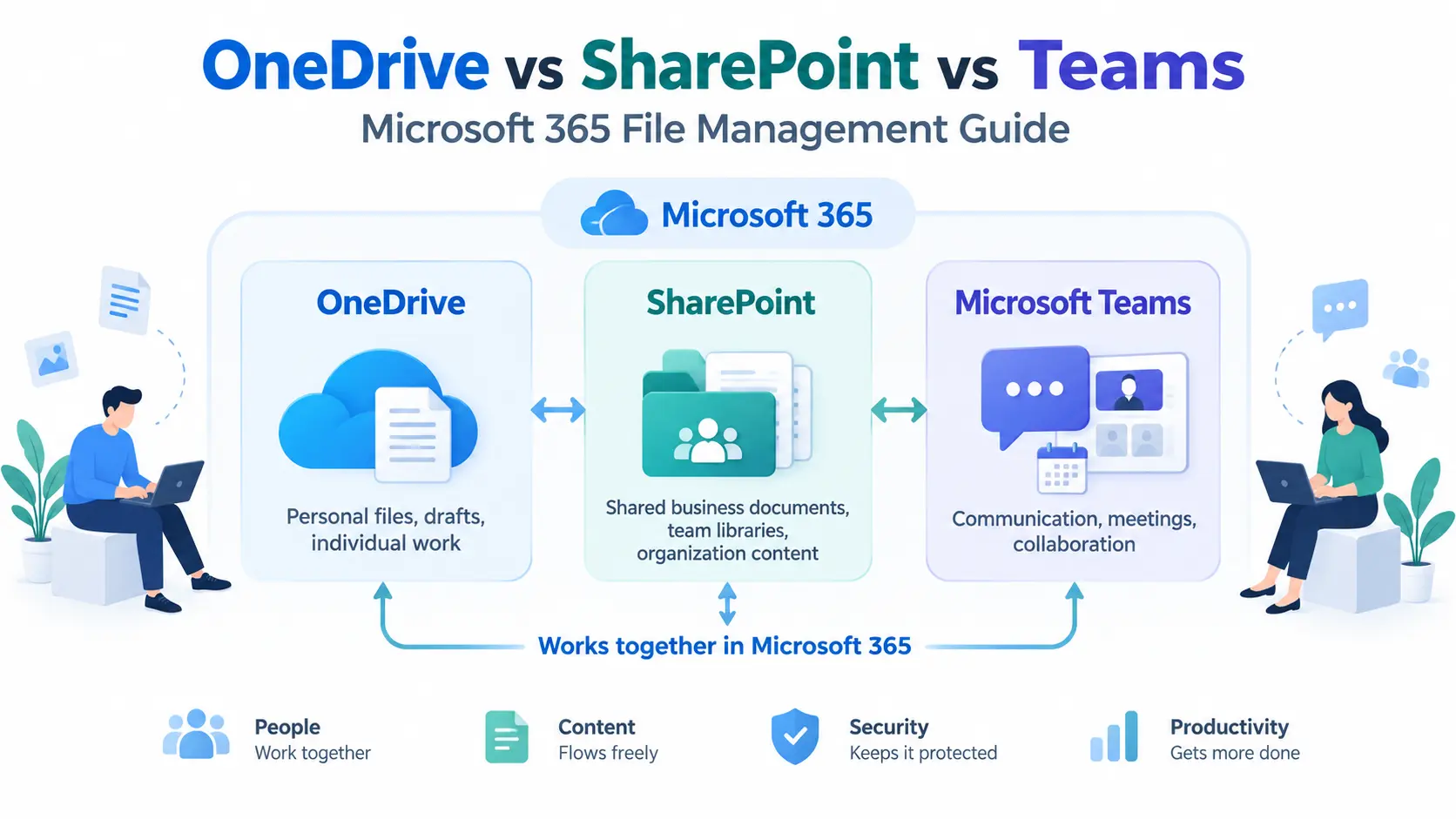
OneDrive, SharePoint, and Microsoft Teams are three major services in Microsoft 365, but each platform serves a different purpose.
Many businesses struggle to understand where they should store documents, how employees should collaborate, and which Microsoft 365 file management solution fits their workflow.
Although these tools work together, they are designed for different tasks.
- OneDrive helps employees manage personal files and individual work.
- SharePoint manages shared business documents, team libraries, and organizational information.
- Microsoft Teams connects employees through chat, meetings, and collaboration while using OneDrive and SharePoint for file storage.
A properly configured Microsoft 365 environment helps businesses organize documents, control access, and improve collaboration.
Organizations that need professional assistance with Microsoft solutions can explore the Microsoft Partner Directory to discover providers specializing in Microsoft technologies, cloud services, and business solutions.
Microsoft explains that its 365 ecosystem combines productivity applications with cloud services that help organizations create, store, share, and manage information.
This guide explains the difference between OneDrive, SharePoint, and Teams, how these platforms connect, and how businesses can organize, share, and control files using these platforms.
Understanding Microsoft 365 File Management Ecosystem
Microsoft 365 is a cloud-based productivity platform that provides applications and services for communication, document creation, collaboration, and file management.
It includes tools such as:
- Microsoft Word
- Microsoft Excel
- Microsoft PowerPoint
- Outlook
- OneDrive
- SharePoint
- Microsoft Teams
Businesses use Microsoft 365 to manage daily operations, store documents, communicate with teams, and support remote work.
The platform works as a connected ecosystem where different services handle different responsibilities.
For example:
An employee can create a document in OneDrive, collaborate with colleagues through Microsoft Teams, and store the final company version in SharePoint.
This workflow allows employees to move documents from personal drafts to shared company libraries when collaboration is required.
Companies that require Microsoft cloud implementation support can also research Top Microsoft Partners in the USA to find organizations offering Microsoft-related services.
How OneDrive, SharePoint, and Teams Work Together
OneDrive, SharePoint, and Teams are connected services rather than separate platforms.
Each tool has a specific role:
OneDrive
OneDrive provides personal cloud storage.
Employees use it for:
- Personal documents
- Draft files
- Individual projects
- Temporary work materials
SharePoint
SharePoint provides shared storage and document management.
Organizations use it for:
- Team documents
- Department files
- Company resources
- Business records
Microsoft Teams
Teams provide communication and collaboration features.
Employees use Teams for:
- Chat
- Meetings
- Channels
- Project discussions
The relationship works like this:
Microsoft 365
|
———————–
| | |
OneDrive SharePoint Teams
Teams connect users with files, but the actual storage usually comes from OneDrive or SharePoint.
Microsoft provides official guidance on how Teams, SharePoint, and OneDrive work together inside Microsoft 365.
What Is OneDrive?
OneDrive is Microsoft’s cloud storage service designed for individual users.
Each Microsoft 365 user receives personal storage where they can save, organize, and access files from different devices.
Employees commonly use OneDrive for:
- Personal documents
- Draft versions
- Private files
- Early project work
OneDrive works like a personal digital workspace.
For example:
A marketing employee creates a campaign plan and saves the first draft in OneDrive. After the document requires feedback from other departments, the team can move it into SharePoint for shared collaboration.
This separation keeps personal work separate from company-owned information.
Microsoft provides detailed information about OneDrive features, synchronization, and file sharing through its official support resources.
How Microsoft Teams Uses OneDrive and SharePoint Together
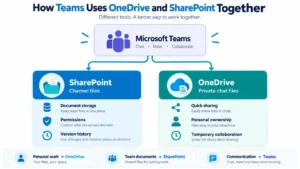
Microsoft Teams does not act as an independent file storage platform. Instead, it connects with OneDrive and SharePoint to manage different types of files.
This setup allows teams to collaborate while maintaining proper document management.
The basic relationship is:
Microsoft Teams
|
———————
| |
SharePoint OneDrive
(Channel Files) (Private Chat Files)
Teams Channel Files and SharePoint
When users upload files inside a Teams channel, those files are stored in SharePoint.
Each Team team creates a connected SharePoint site where channel documents are managed.
SharePoint handles:
- Document storage
- File permissions
- Version history
- Document organization
- Collaboration controls
For example, a company creates a Teams channel for a marketing campaign.
Employees share designs, reports, and documents inside that channel. Those files are actually stored in the connected SharePoint document library.
This setup allows teams to collaborate while maintaining organized document storage and access control.
Private Teams Chat Files and OneDrive
Files shared through private Teams chats are stored in OneDrive.
For example:
An employee sends a presentation file to a colleague through a private Teams message.
That file remains connected to the sender’s OneDrive storage.
This approach is useful for:
- Quick file sharing
- Individual collaboration
- Temporary document exchange
However, if the document becomes a permanent business resource, organizations should move it into SharePoint.
SharePoint organizes information through shared libraries, permissions, and document management features.
OneDrive vs SharePoint vs Teams: Complete Comparison
Choosing between OneDrive, SharePoint, and Teams becomes easier when you understand their main differences.
Feature | OneDrive | SharePoint | Microsoft Teams |
Primary Purpose | Personal file storage | Business document management | Communication and collaboration |
Main Users | Individual employees | Teams and organizations | Project teams |
File Ownership | Individual user | Organization | Team members |
Best For | Personal documents and drafts | Shared business files | Meetings and discussions |
Permissions | Basic sharing controls | Advanced permission management | Team and channel permissions |
Collaboration Level | Individual sharing | Enterprise collaboration | Real-time teamwork |
Storage Connection | Personal cloud storage | Shared document libraries | Uses OneDrive and SharePoint |
OneDrive vs SharePoint for Business: Which One Should You Choose?
Businesses often ask whether they should store everything in OneDrive or move everything to SharePoint.
The correct choice depends on file ownership and collaboration needs.
Use OneDrive When:
OneDrive is suitable when a file belongs to one person.
Common examples include:
- Personal work documents
- Draft proposals
- Individual reports
- Temporary files
- Private projects
A designer, writer, or consultant may create early versions of documents in OneDrive before sharing them with others.
Use SharePoint When:
SharePoint is better when files belong to a team or organization.
Common examples include:
- Department documents
- Company policies
- Project files
- Internal resources
- Long-term business records
SharePoint creates a structured environment where multiple employees can access and manage information.
SharePoint vs Teams: Understanding Their Roles
Many businesses think SharePoint and Teams are competing tools.
They are not.
They solve different problems.
SharePoint Manages Information
SharePoint focuses on:
- Document storage
- Content management
- Permissions
- Business workflows
- Organization-wide information
It provides the foundation for managing company knowledge.
Teams Manages Communication
Microsoft Teams focuses on:
- Conversations
- Meetings
- Collaboration
- Team coordination
Teams help employees communicate around their work, while SharePoint manages the documents behind that work.
OneDrive, SharePoint, and Teams for Different Business Sizes
Different organizations require different Microsoft 365 file management approaches.
Small Businesses
Small companies usually need simple collaboration.
A common setup includes:
- OneDrive for personal files
- Teams for communication
- Basic SharePoint usage
This works well when document structures are simple.
Growing Companies
Growing businesses need better organization.
They usually require:
- SharePoint document libraries
- Teams project channels
- OneDrive personal storage
For example, a growing technology company may use Teams for daily communication, SharePoint for project documentation, and OneDrive for employee drafts.
Enterprise Organizations
Large organizations need advanced control over information.
They often require:
- Structured SharePoint sites
- Advanced permissions
- Compliance management
- Document governance
- Workflow automation
Enterprise environments require planning for permissions, governance, security policies, and document structures before Microsoft 365 deployment.
Organizations looking for Microsoft technology specialists can explore the Microsoft Partner Directory to find providers offering Microsoft cloud and collaboration services.
Security and Permission Management in Microsoft 365
Security is a critical part of Microsoft 365 file management because organizations need to protect business information across multiple services.
When organizations store thousands of documents across OneDrive, SharePoint, and Teams, they need clear rules about who can access information and how files are managed.
A secure Microsoft 365 setup requires clear permissions, document control, and security policies.
Microsoft provides security guidance and best practices through its official Microsoft Learn resources.
Access Control in OneDrive, SharePoint, and Teams
Access control decides who can view, edit, or manage files.
Each Microsoft 365 service handles permissions differently.
OneDrive Permissions
OneDrive focuses on personal ownership.
The user who creates the file usually controls:
- Who can view the document
- Who can edit the document
- Who can access shared links
This approach works well for personal files and short-term collaboration.
However, organizations should avoid keeping important company documents only inside employee OneDrive accounts.
If an employee leaves the organization, business files stored only in personal storage may create access challenges.
SharePoint Permissions
SharePoint provides more advanced permission management.
Administrators can control access at different levels:
- Sites
- Document libraries
- Folders
- Individual files
For example, a company can create a SharePoint site for the finance department and allow access only to authorized employees.
This structure helps organizations protect confidential information while allowing teams to collaborate.
Teams Permissions
Microsoft Teams permissions are connected with team membership and channels.
Teams administrators can manage:
- Team members
- Owners
- Channel access
- Guest permissions
Since Teams uses SharePoint for channel files, document permissions often follow SharePoint settings.
Version History and Document Control
Document control becomes important when multiple employees edit the same file.
Microsoft 365 provides version history features that allow users to track changes.
Organizations can:
- Review previous versions
- Restore older copies
- Understand document changes
- Maintain editing records
For example, if several employees update a business proposal, the team can check previous versions before approving the final document.
This reduces mistakes and improves collaboration.
Compliance and Data Governance
Large organizations often need policies for managing business information.
Microsoft 365 supports data governance through features such as:
- Retention policies
- Information protection
- Access controls
- Document management rules
Businesses should create clear policies for:
- Where files are stored
- Who can access information
- How long documents are kept
- When files should be archived
A good governance strategy keeps Microsoft 365 environments organized as companies grow.
Microsoft 365 File Management Best Practices
A successful Microsoft 365 environment depends on using each platform correctly.
Follow these practices:
Store Personal Files in OneDrive
Employees should use OneDrive for:
- Personal documents
- Draft files
- Individual projects
This keeps personal work separate from company information.
Store Team Documents in SharePoint
Organizations should use SharePoint for:
- Department files
- Shared projects
- Company resources
- Long-term documents
SharePoint provides better ownership because files belong to the organization rather than one employee.
Use Teams for Communication
Teams should be used for:
- Discussions
- Meetings
- Project updates
- Collaboration
Teams help employees communicate while SharePoint and OneDrive manage the files.
Create Organized Document Libraries
Businesses should avoid creating random folders without structure.
A better approach is:
- Create libraries by department
- Use clear naming rules
- Manage permissions properly
- Remove duplicate files
This makes information easier to find.
Review Permissions Regularly
Employee roles change over time.
Organizations should regularly review:
- User access
- External sharing
- Guest accounts
- Admin permissions
Regular reviews reduce unnecessary access to sensitive information.
How to Choose the Right Microsoft 365 File Management Solution
The right platform depends on the type of information being managed.
A simple decision process:
Personal Work
↓
OneDrive
Team Documents
↓
SharePoint
Communication & Collaboration
↓
Microsoft Teams
Choose OneDrive If:
You need:
- Personal cloud storage
- Individual document access
- Draft management
- File synchronization
Choose SharePoint If:
You need:
- Shared document storage
- Advanced permissions
- Team collaboration
- Business workflows
- Long-term content management
Choose Teams If:
You need:
- Employee communication
- Online meetings
- Project discussions
- Team collaboration
Working With Microsoft Partners for Microsoft 365 Solutions
Many organizations need professional support when setting up Microsoft 365 environments.
A Microsoft partner can help businesses with:
- Microsoft 365 migration
- Cloud configuration
- Security planning
- User management
- Collaboration setup
- Document organization
Microsoft partners can help organizations plan migrations, configure services, and manage Microsoft 365 environments.
Businesses can explore the Microsoft Partner Directory to discover companies that specialize in Microsoft solutions.
Conclusion
OneDrive, SharePoint, and Microsoft Teams are not replacement tools. Each platform has a different role inside Microsoft 365.
OneDrive supports personal productivity and individual file management.
SharePoint provides structured document management for teams and organizations.
Microsoft Teams connects employees through communication and collaboration.
Businesses achieve better results when they use these platforms together.
A well-designed Microsoft 365 file management system helps organizations control documents, protect information, and improve daily collaboration.
FAQs
1. What is the difference between OneDrive, SharePoint, and Microsoft Teams?
OneDrive, SharePoint, and Microsoft Teams work together inside Microsoft 365 but serve different purposes.
OneDrive is designed for personal file storage, drafts, and individual work.
SharePoint is built for team documents, shared storage, permissions, and enterprise collaboration.
Microsoft Teams focuses on communication, meetings, and teamwork while using SharePoint and OneDrive for file storage.
2. Should I store business files in OneDrive or SharePoint?
Use OneDrive for personal documents, private work files, and files that are still being developed.
Use SharePoint for company-owned documents, department files, long-term projects, and documents that require structured access control, version history, and collaboration features.
3. Where are Microsoft Teams files stored?
Microsoft Teams files are stored differently depending on how they are shared.
Files uploaded inside a Teams channel are stored in SharePoint document libraries. Files shared through private Teams chats are stored in the sender’s OneDrive. This connection allows Teams to provide collaboration while SharePoint and OneDrive handle file management.
4. Is SharePoint better than OneDrive for business use?
SharePoint is generally designed for business-wide collaboration, while OneDrive is designed for individual users.
Businesses that need shared document libraries, advanced permissions, workflows, compliance controls, and team ownership usually use SharePoint. OneDrive remains useful for personal work files and temporary sharing.
5. Can OneDrive, SharePoint, and Teams be used together?
Yes. These platforms are designed to work as part of the Microsoft 365 ecosystem.
A common setup is:
- OneDrive → Personal files and drafts
- SharePoint → Organization documents and team libraries
- Teams → Communication and collaboration interface
Using all three together creates a complete Microsoft 365 file management system for businesses.